velements

Text Animations

Animated text: kinetic typography you can type into

Updated September 18, 20263 min read

How do you animate text for a video?

Pick a text preset, type your line, choose a font and weight, then set the colors, easing and duration. The preview renders the real animation, and the export is an MP4 or a transparent WebM you drop straight onto a track in your editor.

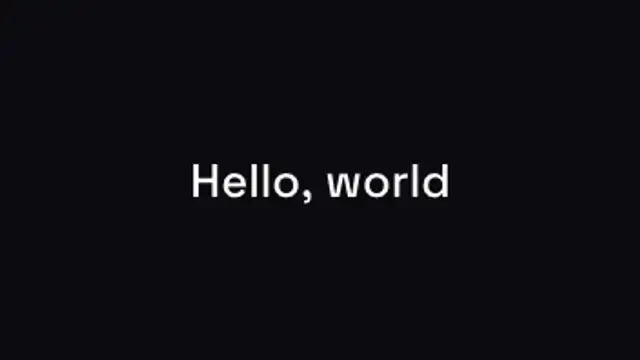
Kinetic typography carries a message faster than a voiceover. These presets stagger words, blur them in, type them out or mask them behind a line, and every one of them takes your own copy and your own font.
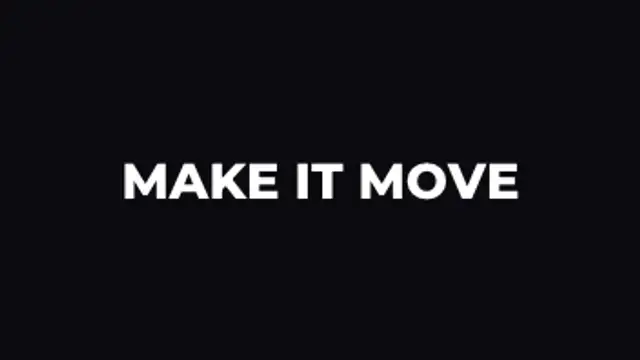
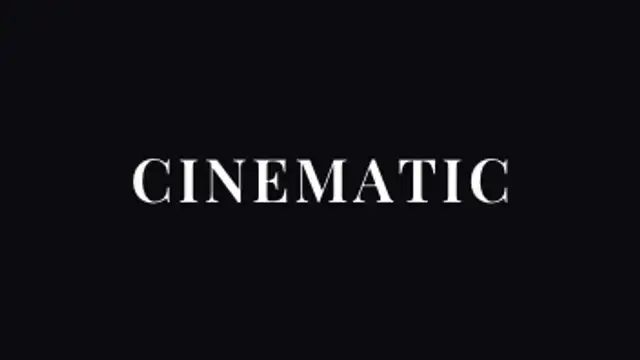
Five text animations presets to start from

Hover any card to play it. Opening one loads it in the editor with every control unlocked.

  • Words rise into place one after another with a soft fade, then lift away. Perfect for captions and hooks.

  • Letters sharpen out of a dreamy blur from the center outward for elegant, cinematic titles.

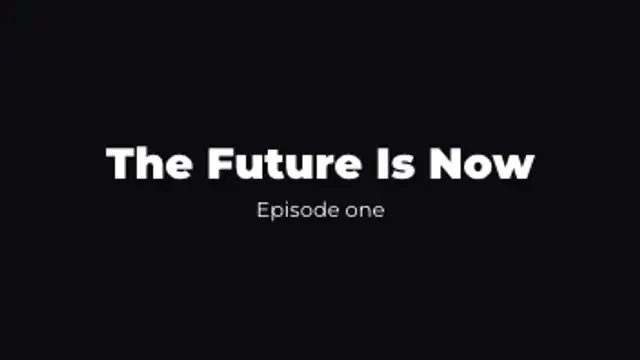
  • Classic typing effect with a blinking cursor that writes your message and erases it again.

  • Each line glides up from behind an invisible mask while an accent bar draws underneath. Editorial and bold.

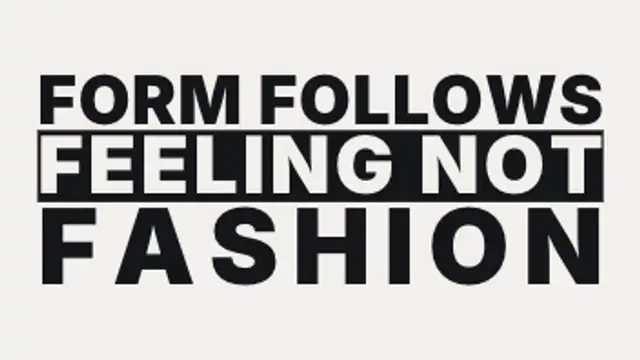
  • Letters drift together from wide spacing while fading in, the signature look of luxury and fashion brands.

All text animations

How to make one in the browser

  1. 01Open a text animations presetBrowse the Text Animations category and open the preset closest to what you need. It loads in the editor with every control unlocked.
  2. 02Make it yoursRewrite the text, set your brand colors and font, adjust easing and duration, and switch the aspect ratio for the platform you are posting to.
  3. 03Export the clipChoose MP4 for a normal track or transparent WebM for an overlay, pick a resolution up to 8K, and the file renders on your own machine.

Which format should you export?

Use MP4 when the clip sits on its own track or fills the frame. Use transparent WebM whenever it has to float over your own footage: the alpha channel is real, so no keying or blend mode is needed.

Format
MP4 H.264 · WebM VP9
Alpha
Transparent WebM
Resolution
720p to 8K
Aspect
16:9 · 9:16 · 1:1 · 4:5
License
Commercial use included

Three tips that make it look intentional

  • Keep lines under seven words so the animation lands before the viewer reads ahead.
  • Pair a heavy display weight with a slow ease for a confident, cinematic feel.
  • Use transparent WebM when the type sits over footage rather than a solid background.

Frequently asked

Which fonts can I use?
Ten open-license families ship with the editor, each with multiple weights, so exported clips stay clear for commercial work.
Can I animate more than one line?
Yes. Presets with titles and subtitles animate each line on its own beat, and you control both the wording and the timing.
  • Icon Animations

    Animated icons: small motion that explains a lot

    Choose an icon preset, pick an icon from the built-in library, set its color, size and stroke, then adjust how it draws, pops or pulses. Export a transparent WebM and the icon animates over any slide, app screen or footage without a matte.

    Read the guide
  • Logo Reveals

    Logo reveal: a brand intro without After Effects

    Open a logo reveal preset in the browser, upload your logo as a PNG, set the background and accent colors, choose a duration and export. The clip renders on your own machine as MP4 or transparent WebM, so no plugin, template file or render queue is involved.

    Read the guide
  • Lower Thirds

    Lower thirds: name tags that look like a broadcast

    Pick a lower third preset, type the name and role, set your brand colors and font, then export a transparent WebM. Drop it on the track above your interview footage, position it in the lower left, and trim it to the seconds where the speaker is introduced.

    Read the guide