velements

Title Animations

Title cards: openers and chapter headings that set the tone

Updated September 18, 20263 min read

What makes a good video title card?

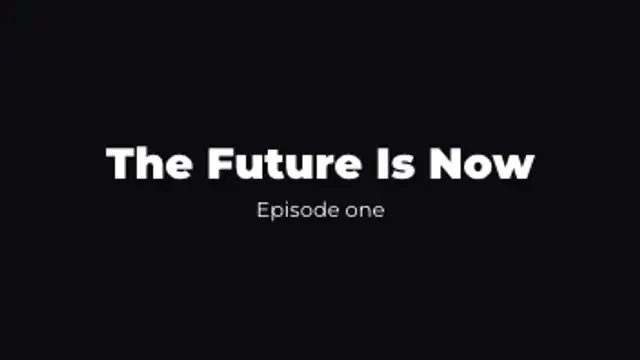
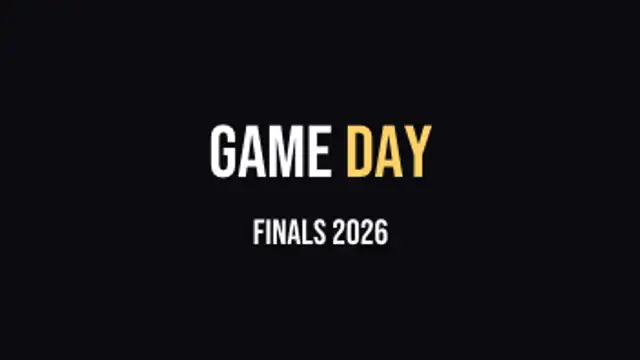
A good title card holds one idea, sets it in a readable weight, and clears the frame before the viewer loses patience. Two to three seconds is usually enough. Animate the headline and subtitle on separate beats so the eye lands on the main line first.

Titles frame everything that follows. These presets stagger headlines, split them across a line, letterbox them or stamp them into a box, and every word, font and beat is yours to set.
Five title animations presets to start from

Hover any card to play it. Opening one loads it in the editor with every control unlocked.

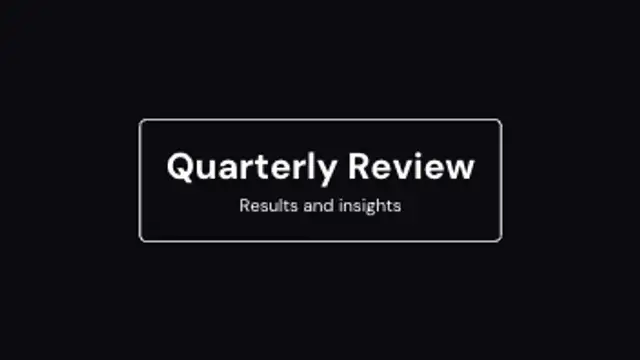
  • The headline builds word by word with a confident rise while the subtitle settles in underneath.

  • Two halves of the title fly in from opposite sides and lock together with a springy impact.

  • A clean outline frame draws around your title before the text gently scales into focus.

  • Cinematic black bars close in while the title gathers from wide spacing. Instant film look.

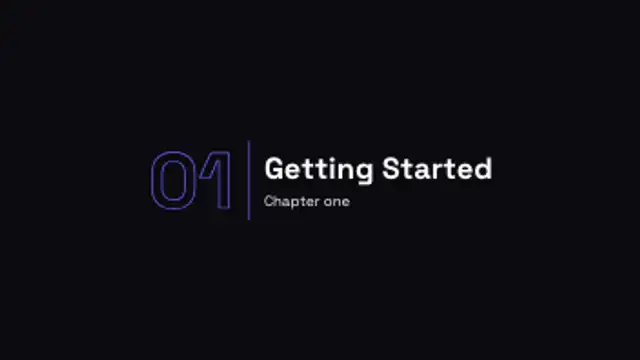
  • A big outlined chapter number lands next to your section title with a crisp divider line.

All title animations

How to make one in the browser

  1. 01Open a title animations presetBrowse the Title Animations category and open the preset closest to what you need. It loads in the editor with every control unlocked.
  2. 02Make it yoursRewrite the text, set your brand colors and font, adjust easing and duration, and switch the aspect ratio for the platform you are posting to.
  3. 03Export the clipChoose MP4 for a normal track or transparent WebM for an overlay, pick a resolution up to 8K, and the file renders on your own machine.

Which format should you export?

Use MP4 when the clip sits on its own track or fills the frame. Use transparent WebM whenever it has to float over your own footage: the alpha channel is real, so no keying or blend mode is needed.

Format
MP4 H.264 · WebM VP9
Alpha
Transparent WebM
Resolution
720p to 8K
Aspect
16:9 · 9:16 · 1:1 · 4:5
License
Commercial use included

Three tips that make it look intentional

  • Use one title style per video and change only the words.
  • Leave the subtitle for context, not for a second headline.
  • Check the 9:16 layout before exporting if the video is heading to Shorts or Reels.

Frequently asked

Can a title card loop?
Title presets play once by design, but you can extend the duration so the card holds longer on screen.
Will my title fit in vertical video?
Layouts are re-laid out for each aspect ratio rather than cropped, so switch to 9:16 in the editor and check the preview.
  • Callouts & Arrows

    Callouts and arrows: point at the thing that matters

    Choose a callout preset, type the label, and set where the arrow or circle lands using the target controls. Export a transparent WebM, place it above your screen recording or footage, and trim it to the moment you are talking about.

    Read the guide
  • Social Media Animations

    Subscribe animations: prompts that actually get pressed

    Put the prompt where the viewer has already got value, usually after the first payoff rather than in the opening seconds. Keep it under three seconds, use a transparent export so it sits in a corner, and pair it with a spoken line for the biggest lift.

    Read the guide
  • Animated Backgrounds

    Animated backgrounds: seamless motion behind your content

    A seamless background loops so its last frame matches its first, which means you can repeat it for any duration without a visible jump. Gradients, grids, waves and particle fields work well behind titles, talking heads and product shots.

    Read the guide