velements

Callouts & Arrows

Callouts and arrows: point at the thing that matters

Updated September 18, 20263 min read

How do you add a callout arrow to a video?

Choose a callout preset, type the label, and set where the arrow or circle lands using the target controls. Export a transparent WebM, place it above your screen recording or footage, and trim it to the moment you are talking about.

Tutorials live or die on whether the viewer looks where you are looking. These presets draw an arrow, scribble a circle, run a leader line or drop a pin, all with your own label text.


Five callouts & arrows presets to start from

Hover any card to play it. Opening one loads it in the editor with every control unlocked.

  • A curved arrow draws itself from your label straight to the detail you want viewers to notice.

  • A loose marker-style loop circles the key detail like a presenter sketching on screen.

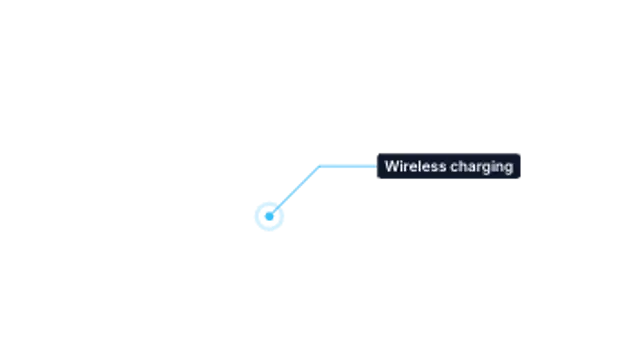
  • A pulsing hotspot sends a crisp leader line to a clean label box. Perfect for product features.

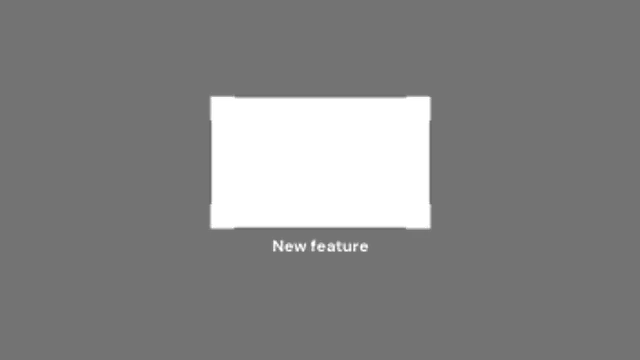
  • Corner brackets snap onto a region while the rest of the frame dims, pulling attention exactly where it belongs.

  • A location pin bounces onto the map and a label card pops above it. Built for travel and real estate.

All callouts & arrows

How to make one in the browser

  1. 01Open a callouts & arrows presetBrowse the Callouts & Arrows category and open the preset closest to what you need. It loads in the editor with every control unlocked.
  2. 02Make it yoursRewrite the text, set your brand colors and font, adjust easing and duration, and switch the aspect ratio for the platform you are posting to.
  3. 03Export the clipChoose MP4 for a normal track or transparent WebM for an overlay, pick a resolution up to 8K, and the file renders on your own machine.

Which format should you export?

Use MP4 when the clip sits on its own track or fills the frame. Use transparent WebM whenever it has to float over your own footage: the alpha channel is real, so no keying or blend mode is needed.

Format
MP4 H.264 · WebM VP9
Alpha
Transparent WebM
Resolution
720p to 8K
Aspect
16:9 · 9:16 · 1:1 · 4:5
License
Commercial use included

Three tips that make it look intentional

  • One callout at a time. Two arrows on screen cancel each other out.
  • Place the target before you record the voiceover so the timing matches your words.
  • Use a color that does not appear in the footage underneath.

Frequently asked

Can I move the arrow to a specific spot?
Yes. Target X and Y controls place the tip anywhere in the frame, in percentages, so it stays accurate at any resolution.
Do callouts work over screen recordings?
That is what the transparent export is for: the callout floats over your recording with no background.
  • Social Media Animations

    Subscribe animations: prompts that actually get pressed

    Put the prompt where the viewer has already got value, usually after the first payoff rather than in the opening seconds. Keep it under three seconds, use a transparent export so it sits in a corner, and pair it with a spoken line for the biggest lift.

    Read the guide
  • Animated Backgrounds

    Animated backgrounds: seamless motion behind your content

    A seamless background loops so its last frame matches its first, which means you can repeat it for any duration without a visible jump. Gradients, grids, waves and particle fields work well behind titles, talking heads and product shots.

    Read the guide
  • Particle Effects

    Confetti and particles: celebration without the cheese

    Pick a particle preset, set the colors and density, then export a transparent WebM. Place it on the track above your footage and trim it to the celebration beat. Because the alpha channel is real, no keying or screen blend mode is needed.

    Read the guide