velements

Live Stream Overlays

Stream overlays: BRB screens, alerts and goal bars

Updated September 18, 20263 min read

What overlays does a live stream need?

Four cover most streams: a be-right-back screen, a webcam frame, an alert for new followers, and a goal bar. Export the alert and frame as transparent WebM so they sit over gameplay, and keep the BRB screen as a looping full-frame MP4.

A stream looks produced when its furniture matches. These presets build a BRB card, frame a webcam, fire alerts, fill goal bars and close with an outro, all in your channel colors.
Five live stream overlays presets to start from

Hover any card to play it. Opening one loads it in the editor with every control unlocked.

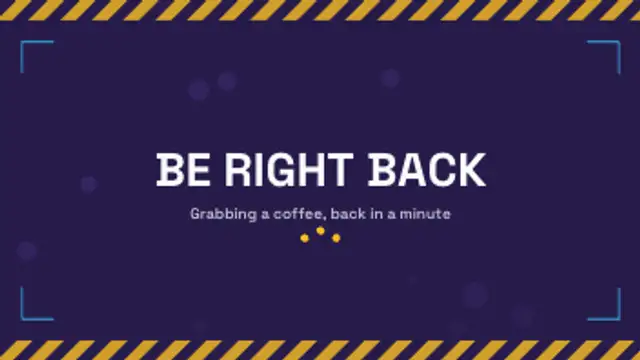
  • A looping break screen: hazard bands scroll along the edges, ambient bubbles drift up and bouncing dots keep the wait alive.

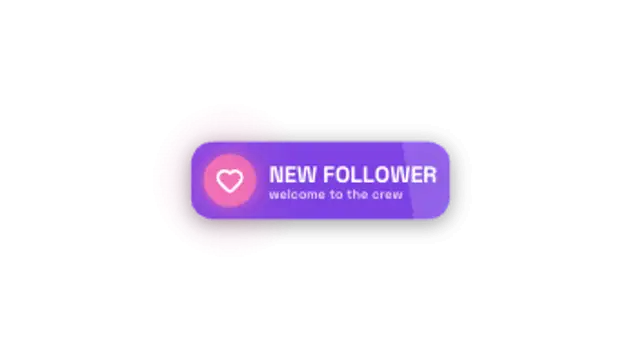
  • A follower alert slams in: rings burst behind the avatar disc, the name slides in and the tier line fades up under a shine sweep.

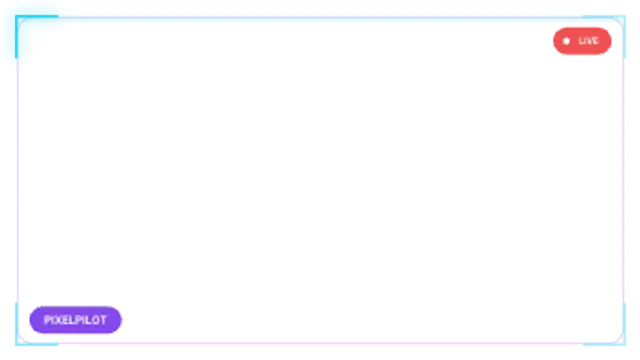
  • A looping cam border with corner brackets that chase around the edge, a name tag and a blinking live badge.

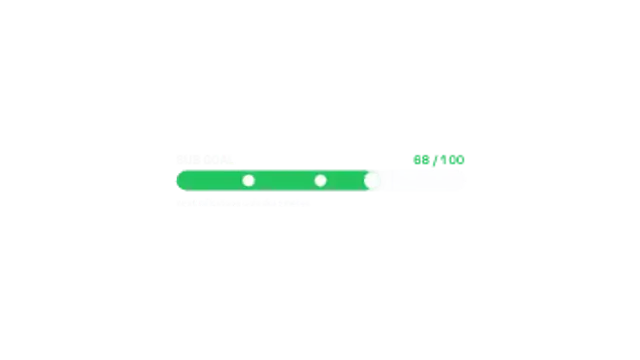
  • A goal bar fills to the current total, counts up beside the target and pops a pip at every milestone it passes.

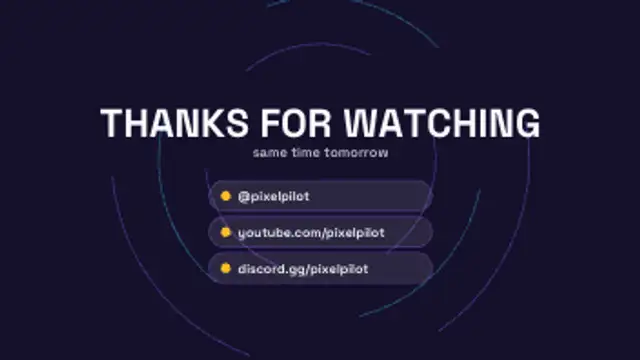
  • A thanks-for-watching outro: the headline drops in over slowly turning dashed rings and handle rows slide up one by one.

All live stream overlays

How to make one in the browser

  1. 01Open a live stream overlays presetBrowse the Live Stream Overlays category and open the preset closest to what you need. It loads in the editor with every control unlocked.
  2. 02Make it yoursRewrite the text, set your brand colors and font, adjust easing and duration, and switch the aspect ratio for the platform you are posting to.
  3. 03Export the clipChoose MP4 for a normal track or transparent WebM for an overlay, pick a resolution up to 8K, and the file renders on your own machine.

Which format should you export?

Use MP4 when the clip sits on its own track or fills the frame. Use transparent WebM whenever it has to float over your own footage: the alpha channel is real, so no keying or blend mode is needed.

Format
MP4 H.264 · WebM VP9
Alpha
Transparent WebM
Resolution
720p to 8K
Aspect
16:9 · 9:16 · 1:1 · 4:5
License
Commercial use included

Three tips that make it look intentional

  • Use one accent color across every overlay so the channel reads as a brand.
  • Keep alerts under four seconds; they interrupt gameplay.
  • Loop the BRB screen so a short break does not end in a freeze frame.

Frequently asked

Do these work in OBS?
Yes, add the exported file as a media source. Transparent WebM keeps the alpha channel intact.
Can I put my channel name on them?
Yes, every overlay takes your own text and colors.
  • Gaming FX

    Gaming FX: level ups, achievements and health bars

    Use gaming presets as overlays: a level-up burst on a win, an achievement plaque for a milestone, a health bar for tension, a combo counter for a streak. Export transparent WebM and place them over gameplay footage on the beat of the action.

    Read the guide
  • Reactions & Memes

    Reaction graphics: emoji pops, censor bars and meme captions

    Use a caption block preset, type the line, and place it at the top or bottom of the frame. Pair it with an emoji reaction pop or an impact stamp on the punchline, and export transparent WebM so the joke lands over your own footage.

    Read the guide
  • Polls & Tier Lists

    Poll and tier list graphics: results that read instantly

    Use a poll result preset: enter the options and percentages, set the colors, and let the bars fill in order. A tier list board, a this-or-that card or a top ten reveal covers the same audience-participation format with a different shape.

    Read the guide