velements

Education & Explainers

Explainer graphics: quizzes, steps and definitions

Updated September 18, 20263 min read

What graphics make an explainer video clearer?

Structure beats decoration. A step sequence shows where the viewer is, a definition card fixes a term, a quiz creates a pause, and a flashcard flip rewards attention. Each one gives the narration something to land on.

Teaching on video is mostly pacing. These presets give a lesson visible structure: numbered steps, term cards, chalkboard equations, quiz questions and flip cards, with your own content in every field.
Five education & explainers presets to start from

Hover any card to play it. Opening one loads it in the editor with every control unlocked.

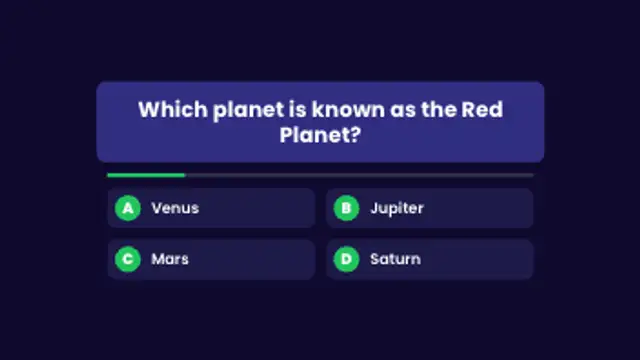
  • A question card pops in, answer options stagger below, a timer bar drains and the correct answer lights up with a tick.

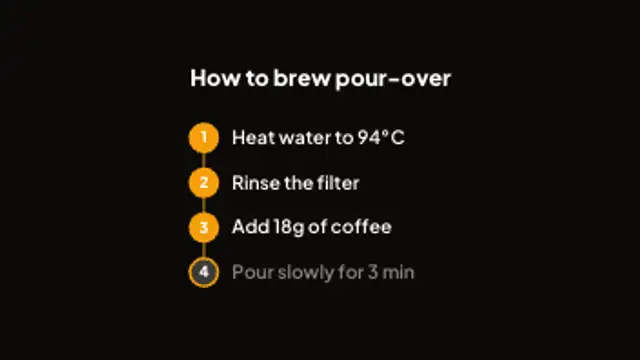
  • Numbered steps pop in along a connector line and the current step lights up in turn. Great for how-tos and recipes.

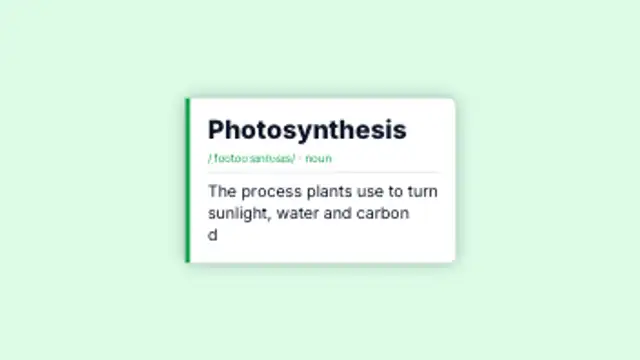
  • A dictionary-style card with term, pronunciation and a definition that types itself out. Perfect for explainers.

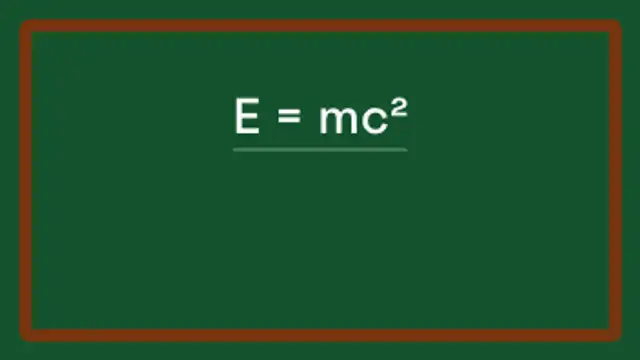
  • An equation writes itself across a chalkboard, gets underlined and the answer pops into a drawn box.

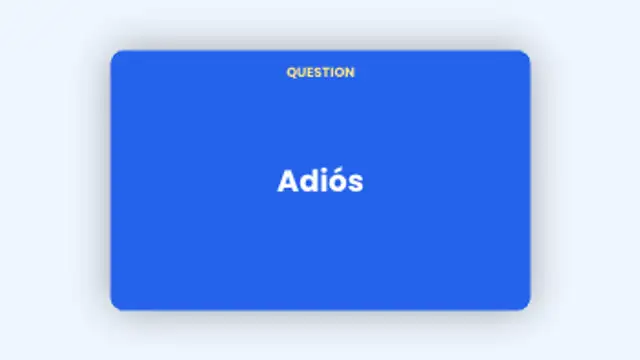
  • Flashcards flip from question to answer and slide away to the next card. Add as many pairs as you like.

All education & explainers

How to make one in the browser

  1. 01Open a education & explainers presetBrowse the Education & Explainers category and open the preset closest to what you need. It loads in the editor with every control unlocked.
  2. 02Make it yoursRewrite the text, set your brand colors and font, adjust easing and duration, and switch the aspect ratio for the platform you are posting to.
  3. 03Export the clipChoose MP4 for a normal track or transparent WebM for an overlay, pick a resolution up to 8K, and the file renders on your own machine.

Which format should you export?

Use MP4 when the clip sits on its own track or fills the frame. Use transparent WebM whenever it has to float over your own footage: the alpha channel is real, so no keying or blend mode is needed.

Format
MP4 H.264 · WebM VP9
Alpha
Transparent WebM
Resolution
720p to 8K
Aspect
16:9 · 9:16 · 1:1 · 4:5
License
Commercial use included

Three tips that make it look intentional

  • Show the step counter before each section so progress is visible.
  • Hold a definition card long enough to be read twice.
  • Ask the quiz question, pause, then reveal, rather than cutting straight to the answer.

Frequently asked

Can I put my own questions in?
Yes, questions, options, terms and equations are all editable text.
Do these work for slides as well as video?
Export MP4 and embed it in a slide, or transparent WebM to overlay it on a recorded lecture.
  • 3D Animations

    3D loops: spinning text, logos and isometric scenes

    Yes, for the kind of 3D that video work actually uses: extruded text, spinning logos, rotating coins, cube grids and isometric stacks. These render on a 2D canvas as clean geometry, loop seamlessly and export as MP4 or transparent WebM.

    Read the guide
  • Live Stream Overlays

    Stream overlays: BRB screens, alerts and goal bars

    Four cover most streams: a be-right-back screen, a webcam frame, an alert for new followers, and a goal bar. Export the alert and frame as transparent WebM so they sit over gameplay, and keep the BRB screen as a looping full-frame MP4.

    Read the guide
  • Gaming FX

    Gaming FX: level ups, achievements and health bars

    Use gaming presets as overlays: a level-up burst on a win, an achievement plaque for a milestone, a health bar for tension, a combo counter for a streak. Export transparent WebM and place them over gameplay footage on the beat of the action.

    Read the guide