velements

Reactions & Memes

Reaction graphics: emoji pops, censor bars and meme captions

Updated September 18, 20263 min read

How do you add a meme caption to a video?

Use a caption block preset, type the line, and place it at the top or bottom of the frame. Pair it with an emoji reaction pop or an impact stamp on the punchline, and export transparent WebM so the joke lands over your own footage.

Reaction graphics are comic timing made visible. These presets pop emoji, block meme captions, slide censor bars, frame a REC viewfinder and stamp impact reactions.

Five reactions & memes presets to start from

Hover any card to play it. Opening one loads it in the editor with every control unlocked.

  • A reaction glyph springs in with a spoke burst and expanding ring while smaller reactions fly out and the count ticks up below.

  • Heavy outlined caption lines slam into the top and bottom of the frame with a short shake and optional dark bars behind them.

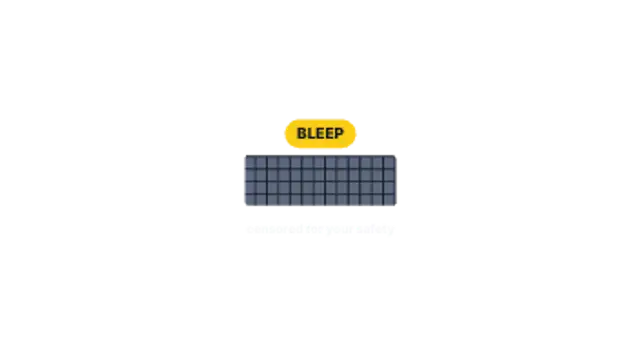
  • A mosaic censor bar slides over the spot, its tiles jitter frame by frame and a bleep tag pops above it.

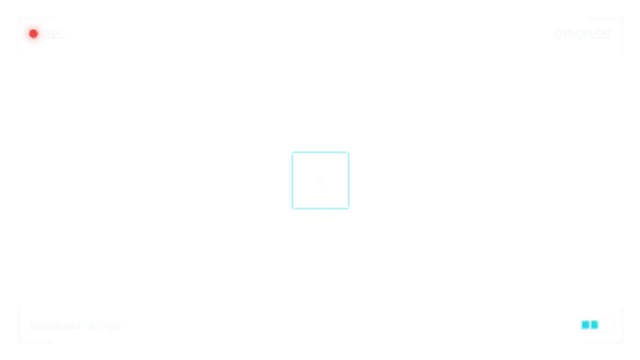
  • A camcorder viewfinder with corner brackets, a blinking REC dot, running timecode, focus box and a battery meter.

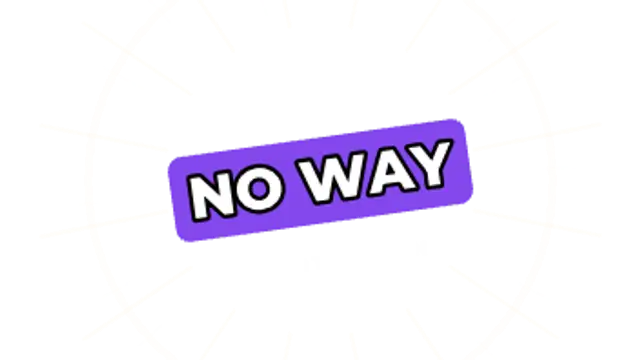
  • A tilted reaction word stamps in hard with speed lines and a ring blast, then settles with a quick shake.

All reactions & memes

How to make one in the browser

  1. 01Open a reactions & memes presetBrowse the Reactions & Memes category and open the preset closest to what you need. It loads in the editor with every control unlocked.
  2. 02Make it yoursRewrite the text, set your brand colors and font, adjust easing and duration, and switch the aspect ratio for the platform you are posting to.
  3. 03Export the clipChoose MP4 for a normal track or transparent WebM for an overlay, pick a resolution up to 8K, and the file renders on your own machine.

Which format should you export?

Use MP4 when the clip sits on its own track or fills the frame. Use transparent WebM whenever it has to float over your own footage: the alpha channel is real, so no keying or blend mode is needed.

Format
MP4 H.264 · WebM VP9
Alpha
Transparent WebM
Resolution
720p to 8K
Aspect
16:9 · 9:16 · 1:1 · 4:5
License
Commercial use included

Three tips that make it look intentional

  • Land the graphic one beat after the line, not with it.
  • Censor bars work best when they cover the obvious thing quickly.
  • Keep caption blocks to one line so they stay readable at phone size.

Frequently asked

Can I use my own wording?
Yes, captions and stamps take your own text and resize around it.
Do the emoji match a specific platform?
No, the shapes are original so exports carry no platform emoji artwork.
  • Polls & Tier Lists

    Poll and tier list graphics: results that read instantly

    Use a poll result preset: enter the options and percentages, set the colors, and let the bars fill in order. A tier list board, a this-or-that card or a top ten reveal covers the same audience-participation format with a different shape.

    Read the guide
  • Shape Transitions

    Shape transitions: how to cut between shots without a plugin

    A shape transition is a graphic wipe where a circle, bar or tile grid travels across the frame and hands the shot over to the next one. It hides the cut, carries your brand color and works in any editor once exported as MP4 or transparent WebM.

    Read the guide
  • Text Animations

    Animated text: kinetic typography you can type into

    Pick a text preset, type your line, choose a font and weight, then set the colors, easing and duration. The preview renders the real animation, and the export is an MP4 or a transparent WebM you drop straight onto a track in your editor.

    Read the guide