velements

Cybersecurity

Cybersecurity graphics: locks, scans and breach visuals

Updated September 18, 20263 min read

What visuals explain cybersecurity in a video?

Use the familiar vocabulary: a shield locking, text scrambling into ciphertext, a firewall blocking traffic, a fingerprint scanning, a 2FA code arriving, or an attack map lighting up. Each one gives a security claim something concrete on screen.

Security content has to show risk and reassurance in the same minute. These presets lock shields, scramble encryption, block firewalls, scan for malware, hook phishing, leak data and lock down ransomware, all in your palette.
Five cybersecurity presets to start from

Hover any card to play it. Opening one loads it in the editor with every control unlocked.

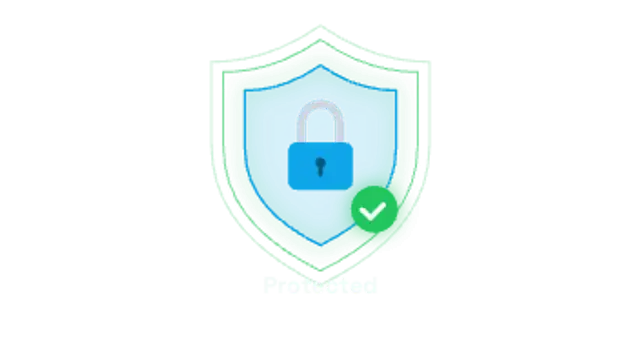
  • A shield outline draws on, a padlock drops in and snaps shut with a click, then glow rings pulse out and a check badge pops.

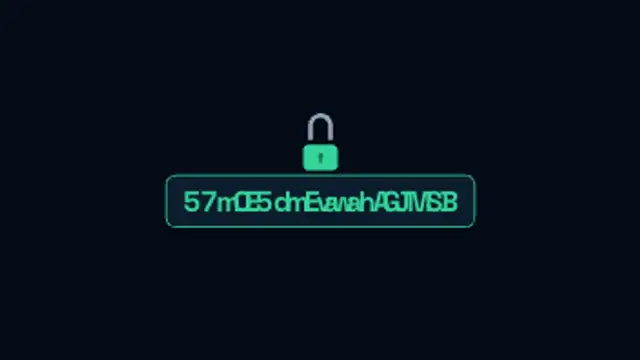
  • Plain text scrambles through random cipher glyphs into encrypted ciphertext before a padlock drops in and seals the message.

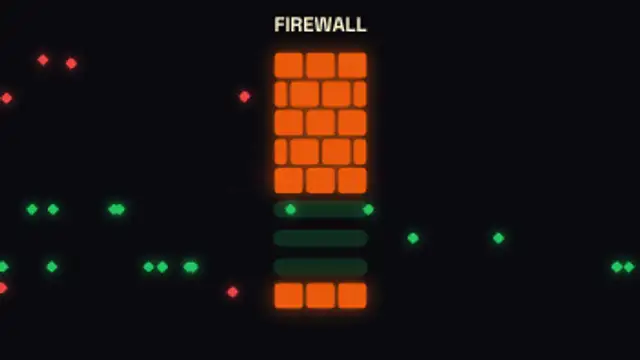
  • Data packets stream toward a brick firewall: safe packets slip through open gates while threats burst apart at the wall.

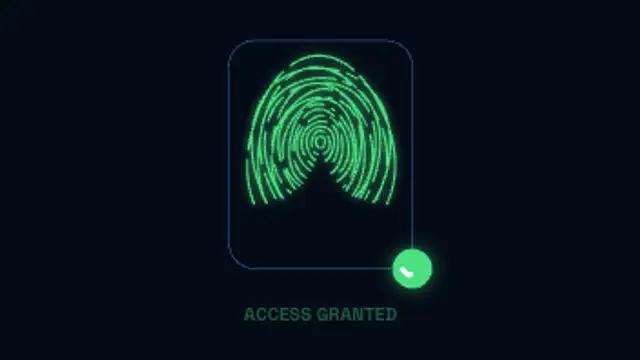
  • Generated fingerprint ridges draw in, a scan beam sweeps down lighting them up, then a check badge and access granted label appear.

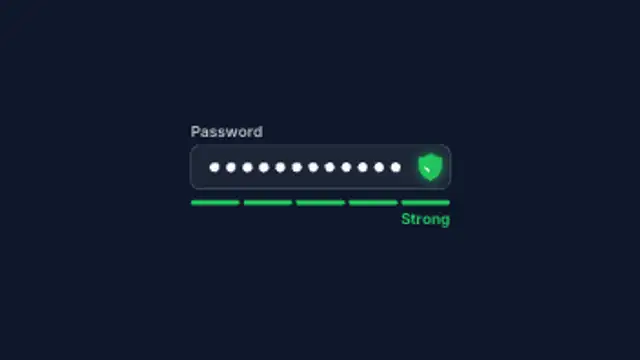
  • Masked password dots type into a field while a segmented meter fills from weak red through amber to strong green.

All cybersecurity

How to make one in the browser

  1. 01Open a cybersecurity presetBrowse the Cybersecurity category and open the preset closest to what you need. It loads in the editor with every control unlocked.
  2. 02Make it yoursRewrite the text, set your brand colors and font, adjust easing and duration, and switch the aspect ratio for the platform you are posting to.
  3. 03Export the clipChoose MP4 for a normal track or transparent WebM for an overlay, pick a resolution up to 8K, and the file renders on your own machine.

Which format should you export?

Use MP4 when the clip sits on its own track or fills the frame. Use transparent WebM whenever it has to float over your own footage: the alpha channel is real, so no keying or blend mode is needed.

Format
MP4 H.264 · WebM VP9
Alpha
Transparent WebM
Resolution
720p to 8K
Aspect
16:9 · 9:16 · 1:1 · 4:5
License
Commercial use included

Three tips that make it look intentional

  • Green for protected, red for compromised; do not mix the signals.
  • Show the threat first, then the control that stops it.
  • Keep scrambled text unreadable but the label readable.

Frequently asked

Can I use these in a training video?
Yes, the commercial license covers internal training, client work and marketing.
Do they show real vulnerabilities?
No, they are illustrative graphics, with no product screenshots or real exploit detail.
  • Green Energy

    Green energy graphics: turbines, solar and net zero

    Clean line art beats stock photography for sustainability claims. A turbine turning, a battery charging from solar, a recycling loop closing or a net zero chart falling to the line each show a process rather than a mood, and they stay honest about what is being claimed.

    Read the guide
  • Spotlight & Focus

    Spotlight and before-after: direct the viewer's eye

    Use a before-after wipe: place both images or clips in the preset, set the wipe direction and speed, and let the line travel across the frame. A spotlight or magnifier does the same job for a single detail inside one image.

    Read the guide
  • Device Mockups

    Device mockups: show an app without filming a phone

    Use a device mockup preset, upload a screenshot, and let the phone, laptop or browser frame animate around it. The result is a clean product shot with no glare, no hand and no camera, exported as MP4 or transparent WebM.

    Read the guide