velements

Countdowns & Timers

Countdown timers: build urgency without a stopwatch

Updated September 18, 20263 min read

How do you add a countdown timer to a video?

Pick a countdown preset, set the starting time and format, choose the colors, and export at the exact duration you need. Flip clocks, ring timers and deadline boxes all count down in real time, so the clip length matches the countdown itself.

A visible clock changes how people watch. These presets flip digits, drain rings, blast numbers and hold a starting soon card, with your own timing and colors.
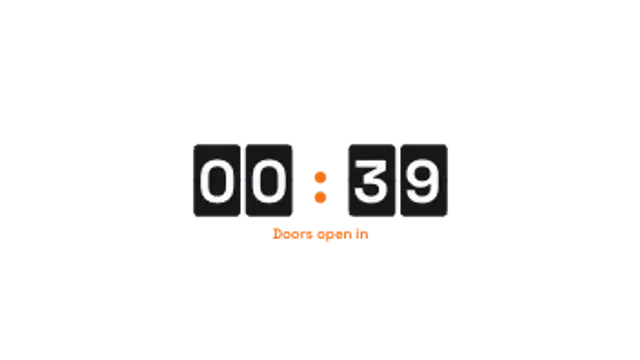

Five countdowns & timers presets to start from

Hover any card to play it. Opening one loads it in the editor with every control unlocked.

  • Split-flap style cards tick down the minutes and seconds. Retro hardware feel for launches and events.

  • A ticked ring drains around the clock while the time pulses each second. Clean for quizzes and challenges.

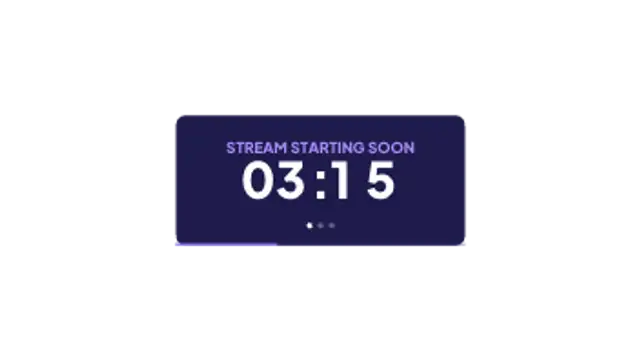
  • A stream-ready panel with headline, live countdown, blinking dots and a progress bar along the bottom.

  • Giant numbers slam in with a shockwave for a 3-2-1 intro that lands on every beat.

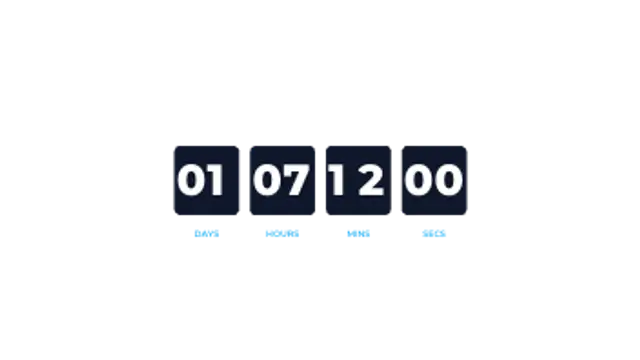
  • Days, hours, minutes and seconds in labelled boxes, the standard urgency block for sales and launches.

All countdowns & timers

How to make one in the browser

  1. 01Open a countdowns & timers presetBrowse the Countdowns & Timers category and open the preset closest to what you need. It loads in the editor with every control unlocked.
  2. 02Make it yoursRewrite the text, set your brand colors and font, adjust easing and duration, and switch the aspect ratio for the platform you are posting to.
  3. 03Export the clipChoose MP4 for a normal track or transparent WebM for an overlay, pick a resolution up to 8K, and the file renders on your own machine.

Which format should you export?

Use MP4 when the clip sits on its own track or fills the frame. Use transparent WebM whenever it has to float over your own footage: the alpha channel is real, so no keying or blend mode is needed.

Format
MP4 H.264 · WebM VP9
Alpha
Transparent WebM
Resolution
720p to 8K
Aspect
16:9 · 9:16 · 1:1 · 4:5
License
Commercial use included

Three tips that make it look intentional

  • Match the export duration to the countdown so the clip ends on zero.
  • Use a ring for streams and a flip clock for launches.
  • Add your own label under the timer to say what happens at zero.

Frequently asked

Can I count down from ten minutes?
Yes, set the duration and the clock format, and the timer paces itself across the whole clip.
Does the timer loop for a stream?
Starting soon cards loop; a counting clock runs once by design.
  • News & Broadcast

    News graphics: tickers, breaking banners and headline bars

    Use a ticker preset, enter your headlines, set the scroll speed and colors, and export. A breaking news banner and a headline bar cover the rest of a bulletin look, and transparent exports let them sit over your own footage or a studio plate.

    Read the guide
  • Scoreboards & Stats

    Scoreboard graphics: score bugs, leaderboards and stats

    Use a score bug preset, enter the team names and scores, set the colors, and export a transparent WebM. Pin it to a top corner for the length of the clip, and cut to a full-frame leaderboard or final score card between plays.

    Read the guide
  • Chat & Social

    Chat animations: tell a story in message bubbles

    Use a chat preset, type each message in order, and set the colors for sent and received bubbles. Typing indicators and timed bubble entrances give the conversation a rhythm, and a transparent export lets it sit over any background.

    Read the guide