velements

Chat & Social

Chat animations: tell a story in message bubbles

Updated September 18, 20263 min read

How do you animate a text message conversation?

Use a chat preset, type each message in order, and set the colors for sent and received bubbles. Typing indicators and timed bubble entrances give the conversation a rhythm, and a transparent export lets it sit over any background.

A conversation is a story with built-in pacing. These presets stack message bubbles, show a typing indicator, float reactions and pop a notification, with your own words in every bubble.
Five chat & social presets to start from

Hover any card to play it. Opening one loads it in the editor with every control unlocked.

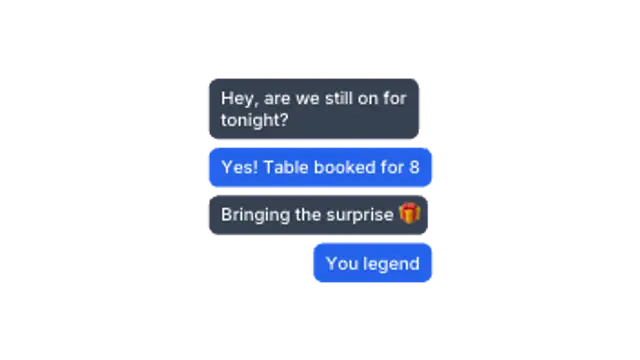
  • Messages pop in one after another, alternating sides like a phone conversation. Perfect for storytelling reels.

  • Three dots bounce in a bubble, then the message lands. The suspense beat every chat scene needs.

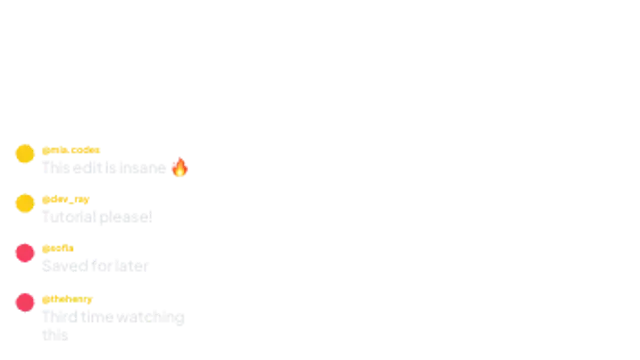
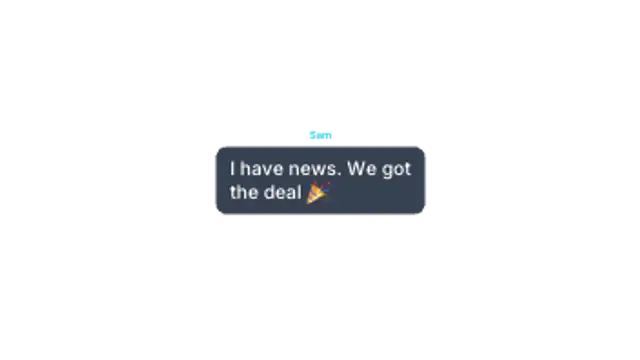
  • Social comments slide in with avatars and handles, stacking up like a live feed under your video.

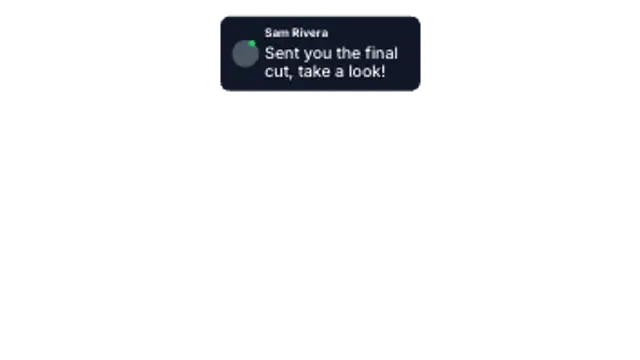
  • A notification card drops in from the top with avatar, sender and preview text, then settles into place.

  • Live-stream reactions drift up the screen in a seeded stream, with an optional counter pill at the base.

All chat & social

How to make one in the browser

  1. 01Open a chat & social presetBrowse the Chat & Social category and open the preset closest to what you need. It loads in the editor with every control unlocked.
  2. 02Make it yoursRewrite the text, set your brand colors and font, adjust easing and duration, and switch the aspect ratio for the platform you are posting to.
  3. 03Export the clipChoose MP4 for a normal track or transparent WebM for an overlay, pick a resolution up to 8K, and the file renders on your own machine.

Which format should you export?

Use MP4 when the clip sits on its own track or fills the frame. Use transparent WebM whenever it has to float over your own footage: the alpha channel is real, so no keying or blend mode is needed.

Format
MP4 H.264 · WebM VP9
Alpha
Transparent WebM
Resolution
720p to 8K
Aspect
16:9 · 9:16 · 1:1 · 4:5
License
Commercial use included

Three tips that make it look intentional

  • Short messages only: long paragraphs break the illusion.
  • Leave a beat on the typing indicator before the reply appears.
  • Avoid copying a specific messaging app's exact colors and shapes.

Frequently asked

Can I control how many messages appear?
Yes, the message list is editable and the timing spreads across the duration you choose.
Do the bubbles look like a specific app?
No, the styling is generic on purpose so your exports stay clear of platform branding.
  • HUD & Sci-Fi Interface

    HUD overlays: sci-fi interface graphics that read clearly

    A HUD overlay is a heads-up display graphic, a radar sweep, a target lock, a scanning frame or a telemetry readout, that sits over footage to suggest a machine is watching. Export it transparent and it composites over any shot without a matte.

    Read the guide
  • Film & Retro Textures

    Film and VHS effects: analog texture over digital footage

    Lay a grain, burn or tracking overlay on the track above your footage and set it to a low opacity. Real analog artifacts are inconsistent, so short bursts of tracking error or a single burn between scenes read better than a constant filter.

    Read the guide
  • Cartoon FX

    Cartoon FX: hand-drawn energy for cuts and reactions

    Cartoon FX are hand-drawn style elements, smoke puffs, speed lines, impact stars and comic captions, that exaggerate a moment. They are exported with transparency and placed over footage, usually for two to eight frames on the beat of the action.

    Read the guide