velements

Particle Effects

Confetti and particles: celebration without the cheese

Updated September 18, 20263 min read

How do you add confetti to a video?

Pick a particle preset, set the colors and density, then export a transparent WebM. Place it on the track above your footage and trim it to the celebration beat. Because the alpha channel is real, no keying or screen blend mode is needed.

Particles sell a moment: a win, a launch, a milestone. These presets burst confetti, twinkle sparkles, drift dust and drop snow, with density, speed and color under your control.
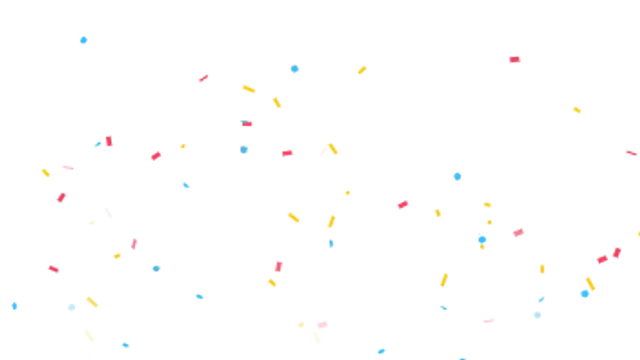
Five particle effects presets to start from

Hover any card to play it. Opening one loads it in the editor with every control unlocked.

  • A cannon of tumbling, fluttering confetti bursts from any corner and rains down. Pure celebration.

  • Glinting four-point stars twinkle across the frame with a soft glow. Adds instant magic to any shot.

  • Layered snowflakes fall with gentle sway and depth blur for a cozy, seamless winter loop.

  • Tiny glowing specks drift and shimmer through the air like dust in a sunbeam. Subtle cinematic texture.

  • Shells streak into the sky and explode into falling sparks. Great for new year, launches and big wins.

All particle effects

How to make one in the browser

  1. 01Open a particle effects presetBrowse the Particle Effects category and open the preset closest to what you need. It loads in the editor with every control unlocked.
  2. 02Make it yoursRewrite the text, set your brand colors and font, adjust easing and duration, and switch the aspect ratio for the platform you are posting to.
  3. 03Export the clipChoose MP4 for a normal track or transparent WebM for an overlay, pick a resolution up to 8K, and the file renders on your own machine.

Which format should you export?

Use MP4 when the clip sits on its own track or fills the frame. Use transparent WebM whenever it has to float over your own footage: the alpha channel is real, so no keying or blend mode is needed.

Format
MP4 H.264 · WebM VP9
Alpha
Transparent WebM
Resolution
720p to 8K
Aspect
16:9 · 9:16 · 1:1 · 4:5
License
Commercial use included

Three tips that make it look intentional

  • Trigger the burst on the beat, not before it.
  • Two or three brand colors look designed; a rainbow looks like a template.
  • Keep density low when the particles sit over faces or text.

Frequently asked

Do I need to key out a black background?
No. Export transparent WebM and the alpha channel is already there, which also avoids the grey halo a screen blend leaves behind.
Can I control how much confetti falls?
Density, speed and variation are all editable, and the seeded randomness means the same settings always render the same clip.
  • Glitch Effects

    Glitch effects: digital distortion that still reads clean

    Choose a glitch preset, set the intensity, speed and colors, and decide whether it carries text or acts as a transition. Export MP4 for a full-frame hit or transparent WebM when the distortion should sit over your own footage.

    Read the guide
  • Light Leaks & Flares

    Light leaks and flares: cinematic atmosphere in one layer

    Export a light leak on a transparent background, place it on the track above your footage, and set the blend mode to screen or add if your editor needs it. Trim it to the cut you want to soften, and lower the opacity until it feels like lens behavior rather than an overlay.

    Read the guide
  • Liquid Transitions

    Liquid transitions: ink, drips and waves between scenes

    A liquid transition uses organic motion, ink spreading, paint dripping or a wave rising, to cover the frame and reveal the next shot. It suits lifestyle, beauty and craft content where a hard geometric wipe would feel too technical.

    Read the guide