Reviews & Testimonials

How to Turn Customer Reviews Into an Animated Video

By the velements teamUpdated November 14, 20263 min read

How to Turn Customer Reviews Into an Animated Video

How do you turn customer reviews into an animated ad without it looking fake?

Use real reviews with their real numbers, and let the motion do the persuading. Fractional star fills, a visible review count and a verified-buyer tag read as genuine; a perfect 5.0 with no count reads as invented.

Social proof is one of the strongest things you can put in an ad, and one of the easiest to get wrong. These presets animate ratings, quote cards, testimonial walls and award badges from the reviews you already have, with sample text that is obviously placeholder until you replace it.
Five reviews & testimonials presets to start from

Hover any card to play it. Opening one loads it in the editor with every control unlocked.

  • Rating Breakdown Bars

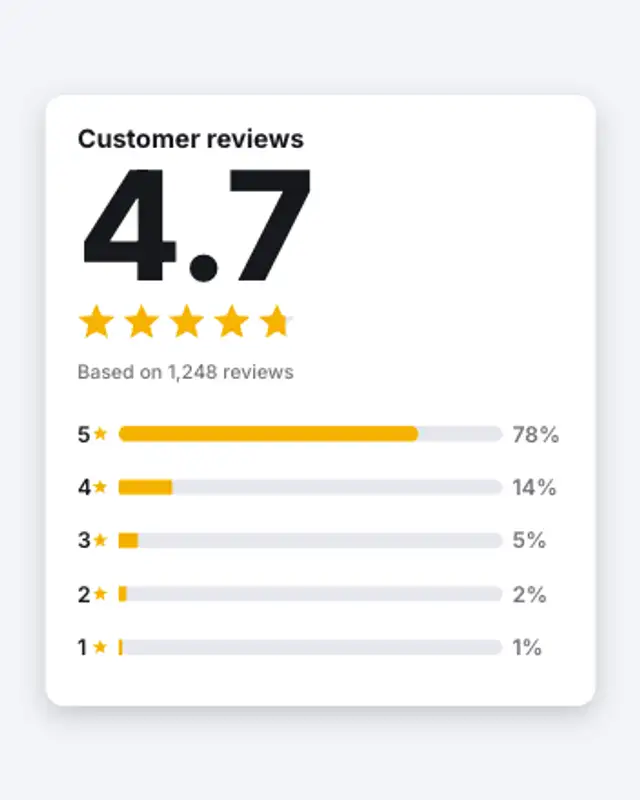
    The average rating counts up as five stars fill to the exact score, then the five-to-one star bars grow to their share of reviews.

  • Rating Breakdown Compact

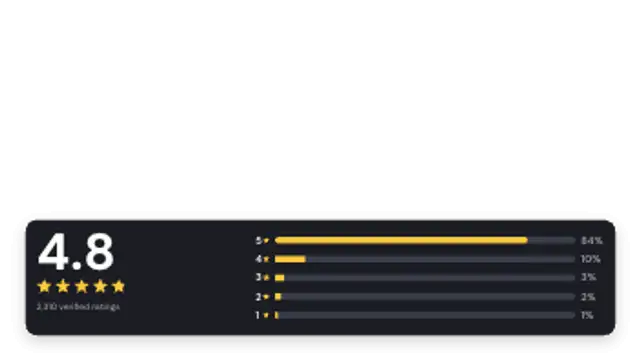
    A slim lower-third card with the score, filled stars and a compact five-bar breakdown that sits over product footage or a talking head.

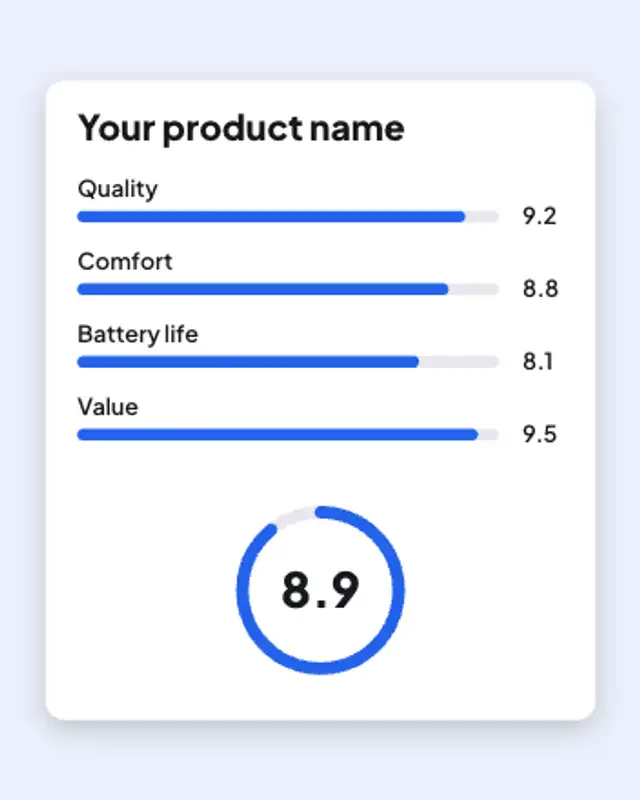
  • Product Scorecard

    Reviewer-style score rows fill one by one with counting values, then a ring sweeps to the overall score and it counts up in the centre.

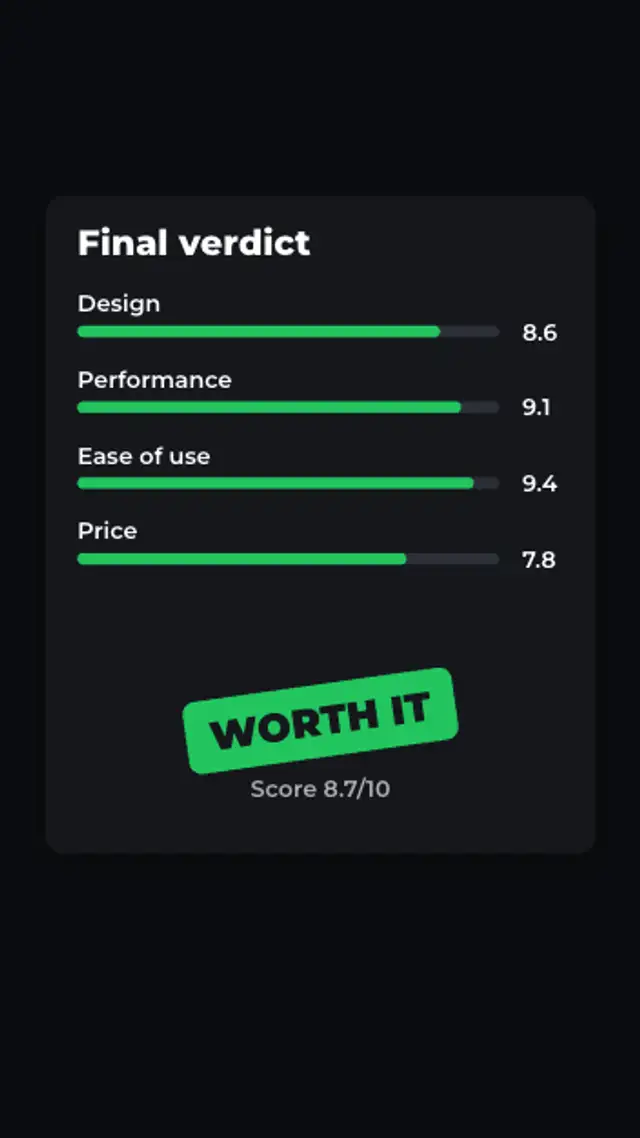
  • Verdict Scorecard

    The score rows fill in, then a verdict stamp slams down at an angle with the overall score written underneath, ready to end a review.

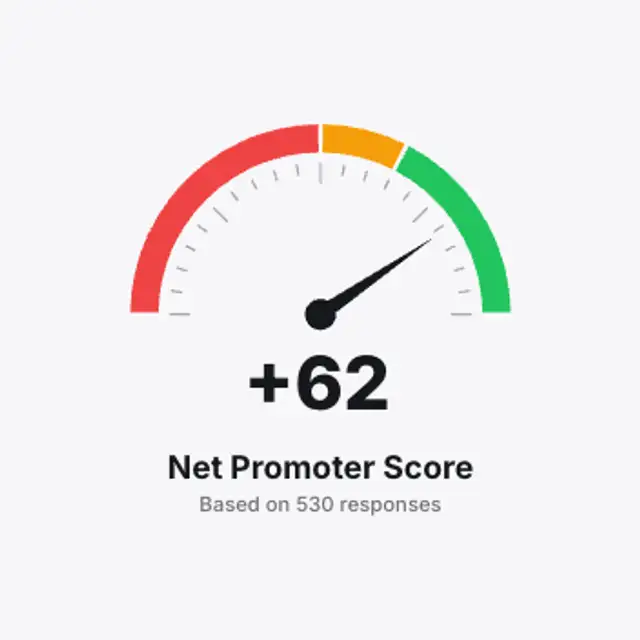
  • NPS Meter

    A three-zone Net Promoter gauge draws on, the needle swings in and settles with a damped wobble, and the score reads live from the needle.

All reviews & testimonials

Step by step

  1. Choose by how much proof you have

    Customer Quote Card suits one good review. Testimonial Lower Third goes under a customer speaking on camera. Rating Breakdown Bars fits when you have enough reviews to show an honest distribution, and Testimonial Wall Marquee, a 12 second loop, needs a batch of short quotes to scroll.

  2. Paste the real words and numbers

    On Customer Quote Card, Text holds the review, Title the name, Subtitle the date or source, and Rating the score to one decimal, with an optional Photo. Rating Breakdown Bars takes the five bar shares in Values. The wall presets take quotes in Headlines and names in Labels.

  3. Size for the placement

    Testimonial Lower Third keeps to the bottom of the frame, so check it clears any captions on your footage. Cards fill the frame well at 4:5 and 1:1 for feed ads and at 9:16 for stories. Most defaults run 3.5 to 5 seconds; raise Duration until a long quote can be read comfortably.

  4. Export by layer

    Testimonial Lower Third and Rating Breakdown Compact already default to a transparent background, so export a PNG sequence for Premiere Pro or After Effects, or WebM with alpha for CapCut. Full-frame cards and walls carry their own background and go out as MP4.

  5. Place it on the interview

    In Premiere Pro, choose File > Import, select the first PNG frame and tick Image Sequence. Set the frame rate under Interpret Footage, then lay the clip above the interview on the second track, starting a moment after the customer begins to speak so their name follows their face.

Where it is used

  • Customer story videos

    A software company's case study names its interviewee with Testimonial Lower Third on the first answer, then ends on Results Stat Quote, with the customer's own result counting up.

  • Direct-response ads

    A skincare brand follows its product demo with Rating Breakdown Bars showing its real score and review count, then closes on Proof Stack End Card with the offer and button.

  • Product pages

    A store plays Testimonial Wall Marquee beside the buying section of a product page, looping short quotes from real buyers so the section keeps moving without a carousel to click.

Presets
30, of which 2 loop
Default length
3.5 to 12 seconds
Best export
PNG sequence or WebM for lower thirds, MP4 for cards
Aspect ratios
16:9, 9:16, 1:1, 4:5

Which format should you export?

MP4 at 4:5 or 1:1 for feed ads, 9:16 for stories and Reels, 16:9 for product pages. WebM with transparency for lower thirds over testimonial footage.

Format
MP4 · WebM · PNG sequence
Alpha
WebM or PNG sequence
Resolution
720p to 8K
Aspect
16:9 · 9:16 · 1:1 · 4:5
Works with
Premiere Pro · After Effects · DaVinci Resolve · Final Cut Pro · CapCut · Figma
License
Commercial use included
Cost
Free · no account · no watermark

Three tips that make it look intentional

  • Paste real reviews and ratings. Keep the reviewer's first name and a date or source where you can.
  • An average like 4.7 is more believable than 5.0. The stars fill to the exact decimal, so the real number looks right.
  • Say when a review was incentivised or written by staff. Several presets have a small tag for that.

Three things people get wrong

  • Inventing reviews, reviewers or counts. In the US the FTC rule on fake reviews applies to ads, and the UK and EU have similar rules.
  • Copying a review site's logo or star style. Use neutral stars and your own colours unless you have permission.
  • Results claims without a note. Before and after or weight loss numbers need a results-vary line.

Frequently asked

Can I use these with reviews from a review platform?

You can type in review text and ratings you have the right to use. The presets use neutral stars and never draw a platform's logo, so check that platform's rules if you mention it by name.

Do fractional ratings work?

Yes. A 4.7 fills four stars and 70% of the fifth, and the score counts up to exactly that value.

  • How to Add a Subscribe Button Animation to a Video

    Social Media Animations

    How to Add a Subscribe Button Animation to a Video

    Put the prompt where the viewer has already got value, usually after the first payoff rather than in the opening seconds. Keep it under three seconds, use a transparent export so it sits in a corner, and pair it with a spoken line for the biggest lift.

    Read the guide
  • How to Make an Audio Visualizer for a Podcast Clip

    Audio Visualizers

    How to Make an Audio Visualizer for a Podcast Clip

    Export an audio visualizer preset, place it over your artwork or video, and lay your audio underneath in your editor. Spectrum bars, waveforms and pulsing orbs give a static episode clip the movement social platforms reward.

    Read the guide
  • How to Add a Price Drop Animation to a Product Ad

    Shop & Ecommerce

    How to Add a Price Drop Animation to a Product Ad

    Three beats do most of the work: the price drop, the social proof, and the call to action. An add-to-cart animation, a star rating and a promo code give a viewer the reason, the reassurance and the next step in under ten seconds.

    Read the guide
Ready to create?

Make your next clip in the next five minutes

Editing, previewing and downloading are free. No account, no watermark, every format and resolution.