velements

Animated Frames

Animated frames: borders that focus the shot

Updated September 18, 20263 min read

When should you use an animated frame?

Use a frame when you need to separate inserted content from the main shot: a photo, a quote, a webcam, a product. Corner brackets and chasing borders draw the eye to a region, and a transparent export lets the footage stay visible inside.

A border is a quiet instruction to look here. These presets snap brackets in, chase a line around the edge, drop a polaroid and glow a neon outline, all sized to your aspect ratio.


Five animated frames presets to start from

Hover any card to play it. Opening one loads it in the editor with every control unlocked.

  • Viewfinder-style brackets glide in from the corners and breathe gently around your shot.

  • Two strokes race around the frame edge, one bold and one fine, drawing a clean rounded border.

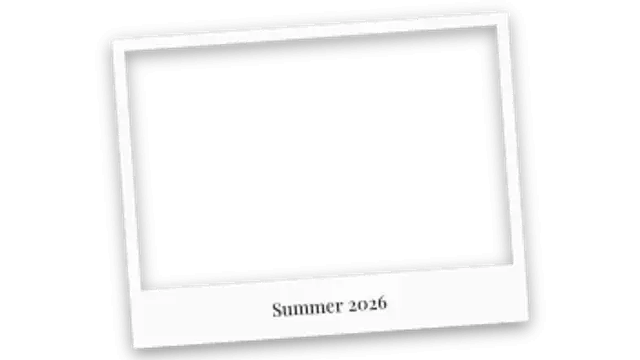
  • An instant photo frame drops and settles at a casual tilt with a handwritten-style caption.

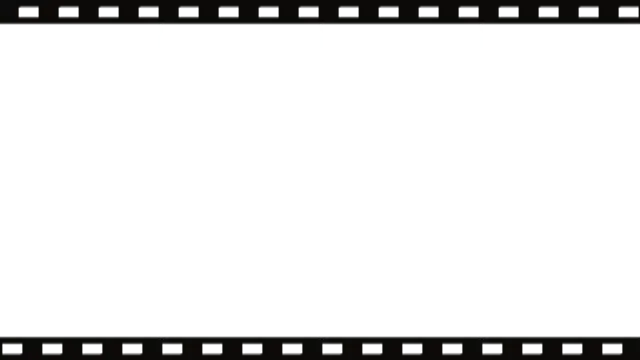
  • Sprocketed film edges slide in and roll continuously for a nostalgic analog cinema frame.

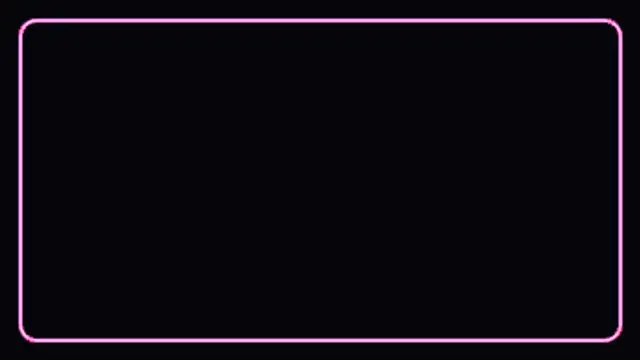
  • A neon tube border flickers to life and pulses between two colors with a soft electric glow.

All animated frames

How to make one in the browser

  1. 01Open a animated frames presetBrowse the Animated Frames category and open the preset closest to what you need. It loads in the editor with every control unlocked.
  2. 02Make it yoursRewrite the text, set your brand colors and font, adjust easing and duration, and switch the aspect ratio for the platform you are posting to.
  3. 03Export the clipChoose MP4 for a normal track or transparent WebM for an overlay, pick a resolution up to 8K, and the file renders on your own machine.

Which format should you export?

Use MP4 when the clip sits on its own track or fills the frame. Use transparent WebM whenever it has to float over your own footage: the alpha channel is real, so no keying or blend mode is needed.

Format
MP4 H.264 · WebM VP9
Alpha
Transparent WebM
Resolution
720p to 8K
Aspect
16:9 · 9:16 · 1:1 · 4:5
License
Commercial use included

Three tips that make it look intentional

  • Inset the frame from the safe area so nothing is lost on a phone.
  • Animate the frame in, then hold it: a constantly moving border is exhausting.
  • Match the stroke width to the weight of your titles.

Frequently asked

Will the frame fit vertical video?
Yes, frames are drawn to the stage size for each aspect ratio rather than being scaled from 16:9.
Can the inside stay transparent?
That is the default for frame presets, so your footage shows through the middle.
  • Badges & Stickers

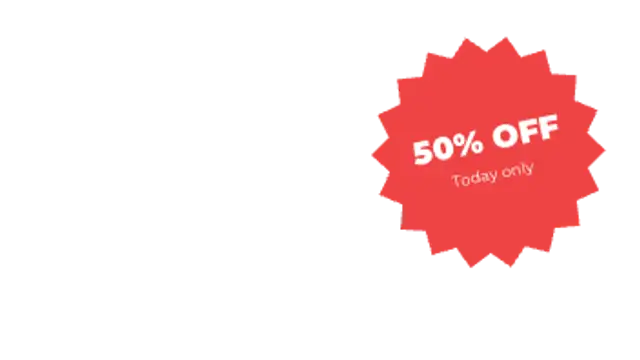
    Sale badges: stickers that make an offer land

    Pick a badge preset, type the offer, set the colors, and export a transparent WebM. Drop it in a corner over your product shot and trim it to a couple of seconds. A pop or slam entrance reads better than a fade for anything price related.

    Read the guide
  • Captions & Subtitles

    Animated captions: keep viewers watching on mute

    Most social video is watched without sound, so captions carry the message. Word-by-word styles also hold attention by giving the eye something to follow, which lifts retention on Shorts, Reels and TikTok compared with a static subtitle block.

    Read the guide
  • Audio Visualizers

    Audio visualizers: turn a podcast clip into something watchable

    Export an audio visualizer preset, place it over your artwork or video, and lay your audio underneath in your editor. Spectrum bars, waveforms and pulsing orbs give a static episode clip the movement social platforms reward.

    Read the guide